

Playing Marvel Rivals with ADHD or learning differences can feel overwhelming at first, trust me, I’ve been there. Between the visual chaos of 12 players using ultimates simultaneously, the constant decision-making pressure, and the sensory overload that can come with hero shooters, it’s easy to feel like your brain is working against you. But here’s what I’ve discovered after months of tweaking settings and strategies: Marvel Rivals can actually be incredibly accommodating once you know how to set it up for your specific needs.
The key isn’t trying to force yourself to play like everyone else, it’s about creating an environment that works with your brain instead of against it. Whether you’re dealing with attention challenges, executive function difficulties, sensory sensitivities, or processing differences, there are concrete ways to make this game more manageable and genuinely enjoyable.

Understanding Cognitive Load in Marvel Rivals
Before we dive into specific strategies, let’s talk about what’s happening in your brain when you play Marvel Rivals. This game throws a lot of information at you simultaneously: visual effects, audio cues, teammate positions, enemy movements, ability cooldowns, ultimate charges, and tactical decisions all competing for your attention.
For neurotypical players, filtering this information happens somewhat automatically. For those of us with ADHD or learning differences, this constant stream can create cognitive overload that makes it hard to focus on what actually matters. The good news? Marvel Rivals gives you significant control over reducing this information load.
Simplifying the Visual Experience
HUD Customization for Reduced Clutter
One of the most impactful changes you can make is adjusting the HUD to reduce visual clutter. Head to Settings > Keyboard > HUD Widget Size and set it to “Small Scale”. This might seem counterintuitive, won’t smaller UI elements be harder to see? Actually, the opposite is true for many people with attention challenges.youtube+1
A smaller HUD takes up less of your visual field, reducing the competition for your attention. The essential information is still there, but it’s not overwhelming your peripheral vision. I’ve found this single change makes it much easier to maintain focus on the core gameplay.
Reducing Visual Chaos
The “Effects Detail” setting is your best friend for managing sensory overload. Setting this to Low dramatically reduces the visual noise from explosions, energy blasts, and particle effects without impacting gameplay clarity. This isn’t about making the game look worse, it’s about removing visual distractions that don’t serve a gameplay purpose.youtube+1
Similarly, setting “Post-Processing” to Low removes many of the dramatic visual effects that can be overwhelming during intense team fights. Your brain will thank you for removing these competing visual elements.
Color and Contrast Adjustments
The colorblind accessibility settings aren’t just for colorblind players, they can be incredibly helpful for anyone who needs clearer visual distinction between elements. Even if you don’t have colorblindness, experimenting with these settings might give you color combinations that are easier for your brain to process quickly.
Consider changing enemy colors to something that stands out clearly against backgrounds, bright pink or purple work well. This reduces the cognitive load of enemy identification, allowing you to focus on other aspects of gameplay.

Audio Management for Focus
Strategic Audio Reduction
While audio cues are important, too much audio information can be overwhelming for people with attention challenges. The key is keeping the most important sounds while reducing sensory overload.
Set the “Music Volume” lower or turn it off entirely if you find it distracting. Background music serves no tactical purpose and can interfere with your ability to process important audio cues. Focus on keeping “Sound Effects” and “Damage Volume” high, as these provide crucial gameplay information.
KO Sound Cues for Awareness
Enable the KO Sound Cues for both teammates and enemies. These audio notifications help you stay aware of team status without having to constantly scan the UI or remember to check teammate positions. This reduces the mental effort required to maintain situational awareness, freeing up cognitive resources for other decisions.
Managing Voice Chat
If voice chat feels overwhelming or distracting, don’t hesitate to disable it entirely. You can still communicate effectively using the ping system, and removing the unpredictable social element of voice chat can significantly reduce anxiety and sensory overload. The ping system in Marvel Rivals is comprehensive enough to cover most tactical communication needs.
Character Selection for Cognitive Accessibility
Low-Complexity Heroes
Starting with characters that have straightforward, predictable ability sets can make a huge difference in managing cognitive load. Here are some excellent options:
Jeff the Land Shark is perfect for players who need predictable, low-pressure gameplay. His healing mechanics are forgiving, his abilities are simple to understand, and he’s genuinely fun to play without requiring complex decision-making.
Groot offers tanky gameplay that’s very forgiving of mistakes. His abilities are straightforward, he’s hard to kill, and his playstyle doesn’t require split-second timing or complex ability rotations.
The Punisher is ideal if you prefer damage characters. He’s essentially “point and shoot” with some utility abilities.
Captain America provides a good middle ground with simple but effective abilities. His shield mechanics are intuitive, and his supportive role means mistakes are less punishing.
Avoiding High-Complexity Characters
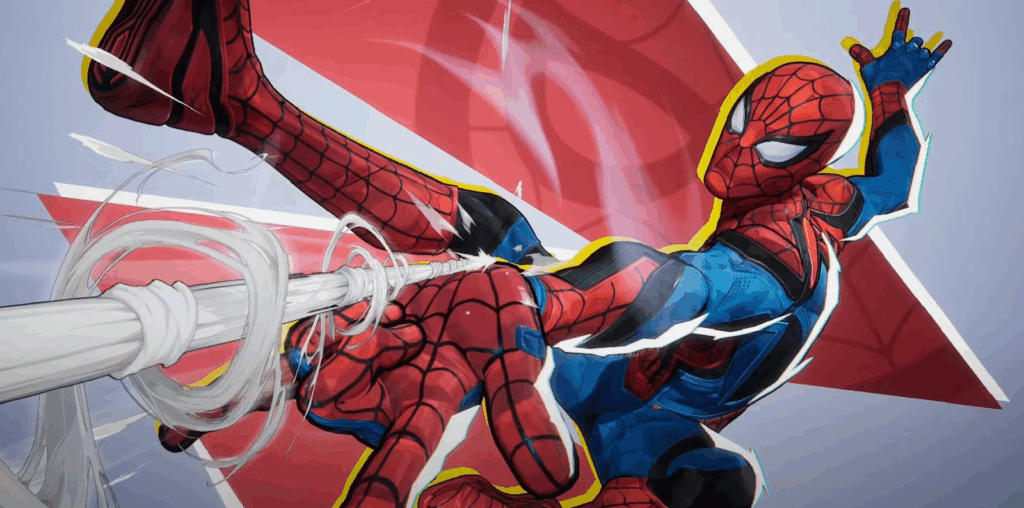
While you can eventually work up to any character, starting with heroes that require complex ability management or precise timing can be overwhelming. Characters like Spider-Man, Venom, or Psylocke have high mobility and complex mechanics that can create decision paralysis during intense moments.
Managing Sensory Overload
Motion and Movement Settings
Screen shake and excessive motion can be particularly overwhelming for people with sensory sensitivities. Look for any motion reduction settings and consider disabling controller vibration entirely if you find it distracting.
The “Hold vs Toggle” settings are crucial for comfort. Converting actions like sprinting, flying, or ability activations to toggle rather than hold can reduce both physical strain and the cognitive load of remembering to maintain button pressure.
Environmental Simplification
Setting “Foliage Quality” to Low not only improves performance but also reduces environmental visual complexity. Less detailed environments mean fewer visual elements competing for your attention, making it easier to spot enemies and track important movement.
Building Sustainable Gaming Habits
Session Length Management
One of the most important aspects of gaming with ADHD or learning differences is recognizing when you’re becoming overwhelmed and taking breaks before it becomes problematic. The ability to pause (in training modes) or leave matches without severe penalties helps you manage your energy levels.
Start with shorter gaming sessions and gradually increase as you become more comfortable with your settings and chosen characters. It’s better to have several positive 20-minute sessions than one overwhelming hour-long session.
Routine and Predictability
Many people with ADHD and autism thrive on routine and predictability. Consider developing a consistent pre-game routine: check your settings, warm up with the same character in training, and review your key bindings. This predictable start can help your brain shift into gaming mode more smoothly.

Focus Strategies During Gameplay
Single-Tasking Approach: Instead of trying to track everything simultaneously, focus on one primary objective at a time. Are you playing support? Focus primarily on keeping teammates alive. Playing tank? Focus on creating space for your team. This reduces decision paralysis and cognitive overload.
Use the Ping System: Rather than trying to communicate complex strategies, use pings to communicate simple, actionable information. “Enemy here,” “Group up,” “Need healing” cover most tactical situations and are much less cognitively demanding than voice communication.
Embrace Repetition: If you find a character, strategy, or even specific game mode that works well for you, don’t feel pressured to constantly switch. Repetition and mastery of familiar patterns can be incredibly satisfying and reduce cognitive load.
Technical Setup for Success
Frame Rate and Performance
Consistent frame rates are crucial for maintaining focus. Stuttering or lag can be particularly disruptive for people with attention challenges. Use the performance settings recommendations to maintain stable FPS, even if it means reducing visual quality.
Input Responsiveness
Minimize input lag by disabling V-Sync and ensuring your display is set to its highest refresh rate. Responsive controls reduce frustration and make the game feel more predictable, which is especially important when you’re managing attention challenges.

When to Take Breaks and Reset
Recognizing Overwhelm
Learn to recognize the early signs of cognitive overload: difficulty making decisions, increased mistakes, feeling frustrated with simple tasks, or physical tension. These are signals that your brain needs a break, not that you need to push harder.
Positive Reinforcement
Focus on small victories and improvements rather than comparing yourself to others. Did you successfully heal your team through a difficult fight? Did you remember to use your abilities effectively? These incremental improvements are more valuable than dramatic gameplay highlights.
Building Confidence Over Time
One of the most encouraging things I’ve discovered is that many accessibility settings that help with ADHD and learning differences also improve overall gameplay. Reduced visual clutter helps everyone spot enemies better. Simplified audio helps everyone focus on important game information. You’re not handicapping yourself, you’re optimizing your setup.
The Marvel Rivals community has generally been supportive of players using accessibility features and alternative communication methods. Don’t hesitate to let teammates know you’re using pings for communication or that you prefer certain strategies. Many players appreciate clear, consistent communication over chaotic voice chat.
Start with the settings and characters that feel most comfortable, and gradually experiment with new options as you build confidence. There’s no timeline you need to follow, the goal is finding a setup that lets you enjoy the game sustainably.
Marvel Rivals offers enough customization options to create an experience that works with cognitive differences rather than against them. The key is approaching setup systematically and being patient with yourself as you find what works best for your specific needs.
What accessibility approaches have worked best for you in Marvel Rivals or other games? Have you found specific characters or settings that make a big difference in managing cognitive load? I’d love to hear about your experiences in the comments, sharing these strategies helps create a more inclusive gaming community for everyone.