

I’ll be honest with you, after spending countless hours in Marvel Rivals, I’ve learned the hard way that this game can be pretty tough on your eyes. Between the fast-paced action, flashy special effects, and sometimes overwhelming visual information, it’s easy to end up with tired, strained eyes after a gaming session. But here’s the good news: with the right settings tweaks, you can make the game much more comfortable to play while actually improving your performance.
Reducing visual clutter helps the 30-minute session too. Our guide on Marvel Rivals in 30-minute sessions without ranking anxiety covers the mode choice and anti-tilt rules for keeping your evening intact.
Over the past few months, I’ve experimented with dozens of different settings combinations, and I want to share what I’ve discovered about reducing eye strain without sacrificing the fun factor. Whether you’re dealing with headaches after gaming sessions, struggling to track enemies through visual clutter, or just want a more comfortable experience, these adjustments can make a real difference.
Understanding Visual Strain in Hero Shooters
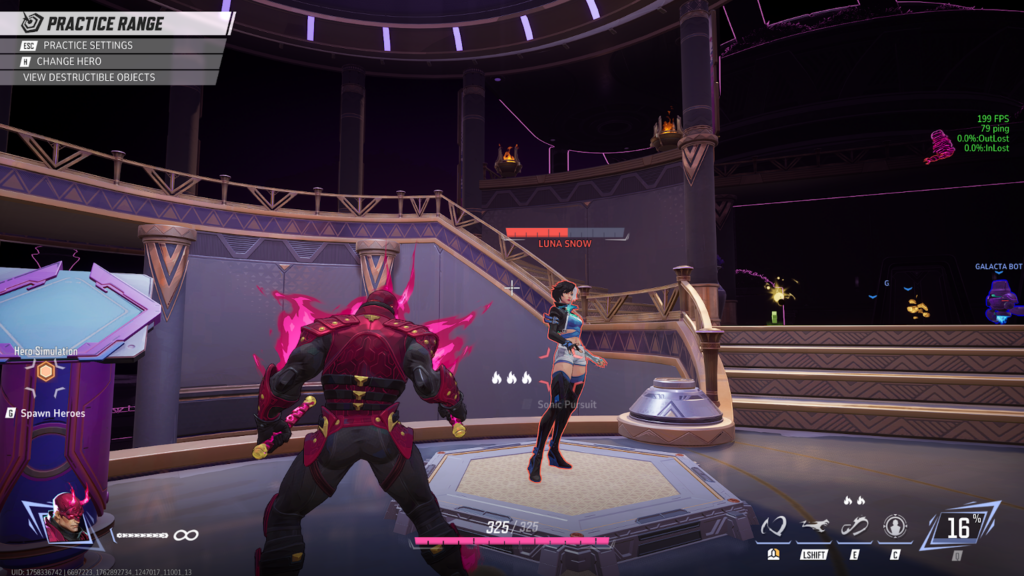
Before we dive into the settings, let me explain what’s happening when your eyes get tired playing Marvel Rivals. This game throws a lot at you visually: bright particle effects, rapid movement, constantly changing lighting conditions, and tons of visual information competing for your attention. Your eyes are working overtime to process all this information, and that leads to fatigue.
The biggest culprits I’ve identified are excessive brightness contrasts, too much visual clutter from effects, and motion blur that makes your eyes work harder to track moving objects. The good news? Marvel Rivals gives you quite a bit of control over these elements once you know where to look.
Brightness and Contrast: Your First Line of Defense
Getting Your Brightness Right
This might seem basic, but proper brightness settings are crucial for eye comfort. I see too many players cranking brightness to 100% because they think it’ll help them spot enemies better, but this often backfires and creates more eye strain.youtube+1
For non-HDR setups, I recommend starting with brightness around 60-70% and adjusting based on your room lighting. If you’re gaming in a dark room, lower it further to around 50%. For HDR users, around 75% tends to be the sweet spot. The key is finding a level where you can see details in dark areas without the bright areas feeling overwhelming.
Here’s a simple test I use: look at the game’s main menu. If the bright areas make you want to squint or look away, your brightness is too high. If you’re straining to see menu text or details, it might be too low.
Managing Contrast Through Graphics Settings
One of the most effective ways to reduce eye strain is controlling the contrast between dark and bright elements. While Marvel Rivals doesn’t have a dedicated high contrast mode, you can achieve similar results by adjusting several settings together.
The most impactful change is reducing “Effects Detail” to Low. This single adjustment cuts down on the brightest, most jarring visual elements like explosions and energy blasts while maintaining gameplay clarity. I was skeptical at first, thinking it would make the game look bland, but honestly, it just removes the visual noise that was making it harder to focus on what matters.
Reducing Visual Clutter: Less is More
Taming Special Effects
Marvel Rivals can feel like a fireworks show sometimes, with multiple ultimates going off simultaneously and particle effects everywhere. The “Post-Processing” setting is your friend here, setting it to Low removes a lot of the dramatic visual enhancements that don’t actually help gameplay but do strain your eyes.
I also recommend setting “Foliage Quality” to Low, which not only improves performance but actually helps with eye strain by reducing environmental detail that competes for your attention. You’ll find it much easier to spot enemies when there’s less visual clutter in the background.
Smart HUD Adjustments
One overlooked source of eye strain is HUD clutter. In Marvel Rivals, you can adjust the HUD size under Settings > Keyboard (or Controller) > HUD Widget Size. I personally use “Small Scale” because it keeps important information visible without dominating your screen real estate.
For support players, there’s a crucial setting that reduces visual overwhelm: enable “Allied Health Bars” for all characters, not just when playing healers. This might seem counterintuitive, more information on screen should mean more clutter, right? Actually, having consistent visual information helps your brain process the game state more efficiently, reducing the mental strain of constantly scanning for teammate status.
Motion Settings That Matter
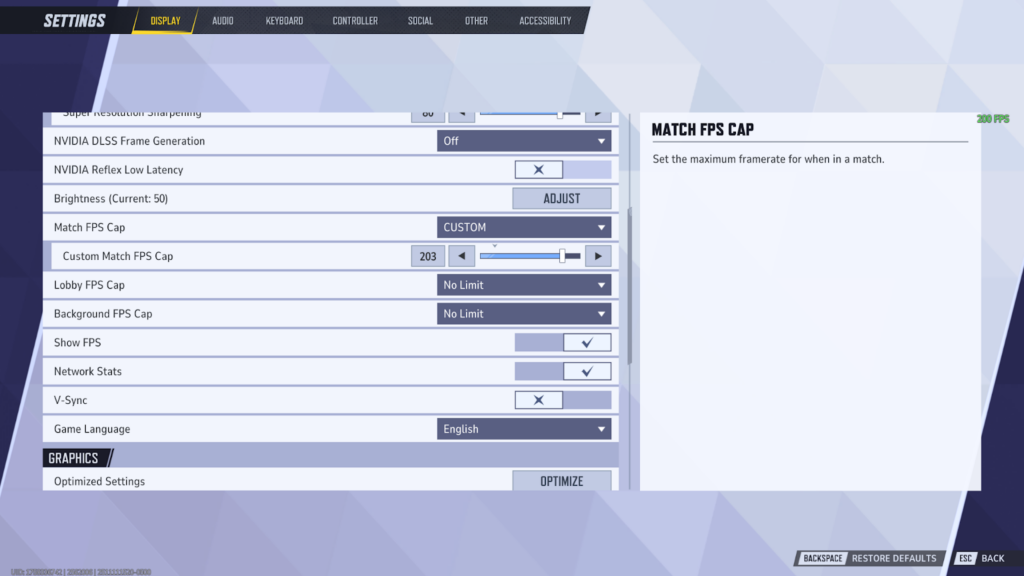
Motion blur is a major eye strain contributor, especially in fast-paced games like Marvel Rivals. While the game doesn’t have a dedicated motion blur toggle in the settings menu, you can effectively reduce motion-related strain through other adjustments.
First, make sure V-Sync is off. This reduces input latency and can make motion feel more responsive and less disorienting. If you’re experiencing screen tearing, try capping your FPS to your monitor’s refresh rate instead of using V-Sync.
For controller players, turning off vibration completely might seem extreme, but it actually reduces visual distraction. When your controller is constantly buzzing, it creates subtle visual movement that your peripheral vision picks up, adding to overall sensory overload.
Advanced Comfort Optimizations
Anti-Aliasing and Sharpness
The type of anti-aliasing you use can significantly impact eye comfort. TAA (Temporal Anti-Aliasing) can sometimes cause a subtle “crawling” or shimmering effect that some players find fatiguing. If you have the performance headroom, try switching to a different anti-aliasing method or even turning it off to see if it helps.
For NVIDIA users, there’s a neat trick involving NVIDIA Control Panel that can improve visual clarity without adding eye strain. You can add image sharpening specifically for Marvel Rivals, which helps counteract any softness from your chosen anti-aliasing method. Set the sharpening amount between 0.3 and 0.7, and enable “Ignore Film Grain” to prevent particle effects from being over-sharpened.
Color and Visibility Tweaks
One of the most effective changes I’ve made is adjusting enemy colors. The default red can blend into backgrounds and force your eyes to work harder to distinguish enemies. I’ve switched to a bright pink or purple for enemy colors, which provides better contrast against most of Marvel Rivals’ environments.
You can also experiment with the colorblind settings even if you’re not colorblind. Sometimes these alternate color schemes are simply easier on the eyes or provide better contrast in specific lighting conditions.
Field of View Considerations
While Marvel Rivals doesn’t have a traditional FOV slider, there are settings that affect your visual field. The crosshair customization options include a “Center Gap” setting that can impact how much visual information you’re processing. For most players, I recommend keeping this relatively tight to reduce peripheral visual distraction.
Settings for Specific Eye Strain Issues
If You Get Headaches
Headaches during gaming are often related to rapid brightness changes and excessive contrast. Focus on:
- Reducing Effects Detail to Low
- Lowering Post-Processing to Low
- Setting brightness conservatively (around 60% for non-HDR)
- Ensuring your room has some ambient lighting to reduce screen contrast
If Objects Feel “Blurry” or Hard to Track
This is often related to anti-aliasing or motion processing:
- Try disabling TAA if you’re using it
- Turn off any motion blur settings in your GPU control panel
- Consider using DLSS on “Quality” mode rather than “Performance” if you have an NVIDIA card
If You Feel Overwhelmed by Visual Information
Focus on reducing clutter:
- Set Effects Detail and Post-Processing to Low
- Adjust HUD size to Small
- Enable Allied Health Bars for consistent information display
- Consider using the “Focus Mix” audio preset to reduce sensory overload
Monitor and Environment Setup
Don’t forget that your physical setup matters too. I’ve found that having some ambient lighting behind my monitor reduces the contrast between the screen and surrounding environment, which helps with eye strain. The 20-20-20 rule is also worth following: every 20 minutes, look at something 20 feet away for 20 seconds.
Monitor brightness should generally match your room’s ambient lighting. If you’re gaming in a dark room with a bright screen, you’re creating unnecessary strain.
My Personal Eye Comfort Setup
After months of tweaking, here’s what I’m currently using for maximum eye comfort without sacrificing competitive integrity:
Graphics Settings:
- Effects Detail: Low
- Post-Processing: Low
- Foliage Quality: Low
- Shadow Detail: Low
- Brightness: 65% (non-HDR)
Gameplay Settings:
- HUD Widget Size: Small Scale
- Allied Health Bars: Always On
- Enemy Color: Bright Pink
- V-Sync: Off
Hardware/Software:
- NVIDIA Image Sharpening: 0.4 with Ignore Film Grain enabled
- Room lighting: Soft ambient light behind monitor
- Monitor brightness: Matched to room lighting
Testing and Adjustment
The key to finding your perfect setup is systematic testing. I recommend changing one setting at a time and playing for at least 30 minutes to see how your eyes feel. What works for me might not work for you, we all have different sensitivities and preferences.
Start with the big impact changes: brightness, effects detail, and post-processing. Once you’ve got those dialed in, move on to the more subtle adjustments like anti-aliasing and color customization.
Less Clutter Can Actually Make You Play Better
Reducing eye strain in Marvel Rivals isn’t about making the game look worse, it’s about removing the visual elements that don’t help your gameplay while keeping everything you need to perform well. I’ve actually found that many of these “eye comfort” settings also improve my performance by making it easier to spot enemies and track important information.
The beauty of Marvel Rivals is that it gives you a lot of control over your visual experience. Don’t be afraid to experiment and find what works best for you. Your eyes will thank you during those longer gaming sessions, and you might even find yourself playing better when you’re not fighting visual fatigue.
What settings have helped reduce eye strain for you? Have you found any particular combinations that work well for different lighting conditions? I’d love to hear about your experiences in the comments, let’s help each other game more comfortably.