

Gaming with limited mobility shouldn’t mean compromising on the experience, and I’m genuinely impressed with how customizable Marvel Rivals has become when it comes to controller accessibility. After spending weeks testing different configurations and talking with players who have various motor challenges, I’ve put together what I hope will be a comprehensive guide to making this game work for you, no matter what your physical limitations might be.
The great news is that Marvel Rivals offers extensive button remapping capabilities, hold-to-toggle conversions, and even supports mixed input methods that can make gaming accessible for players with conditions ranging from arthritis to limited hand function. Let me walk you through everything you need to know to create a comfortable, effective setup that works with your specific needs.
Understanding Marvel Rivals’ Accessibility Foundation
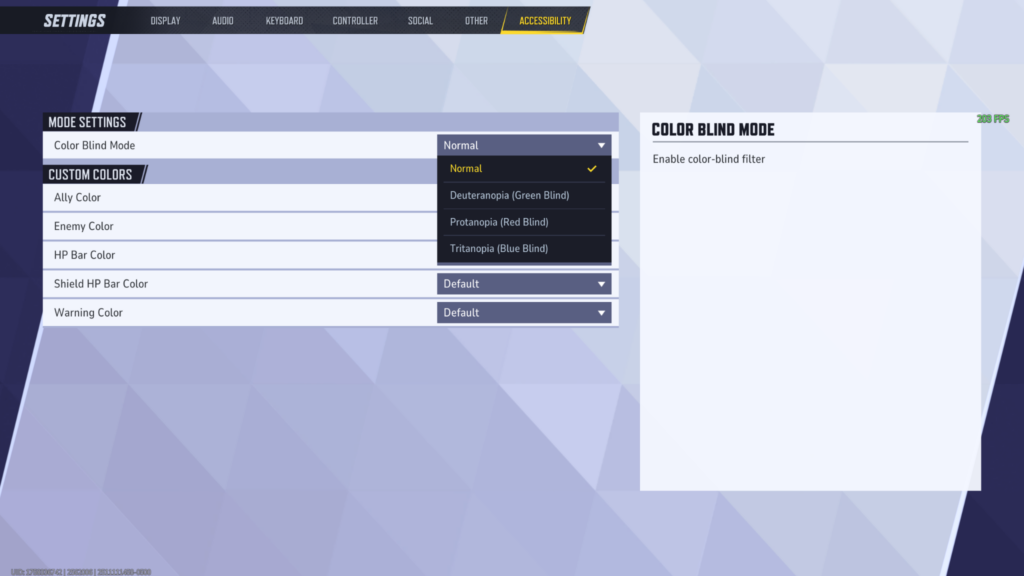
Before we dive into specific configurations, it’s worth understanding what Marvel Rivals offers out of the box. The game supports comprehensive button remapping for both individual heroes and global settings, extensive hold-to-toggle conversions, and what’s called “simultaneous input”, meaning you can use a mouse and controller at the same time.
This last feature is particularly important for players with motor impairments. I’ve seen players successfully use setups where they control movement with one hand using a controller joystick while aiming with a mouse in the other hand. While there are currently some interface issues with device switching notifications, the core functionality works.
Button Remapping: Your Foundation for Comfort
Global vs Individual Hero Remapping
Marvel Rivals gives you two approaches to button remapping: you can set up controls that apply to all heroes, or customize controls for specific characters. For most accessibility setups, I recommend starting with global remapping and then making individual adjustments for heroes that have unique ability requirements.
To access global remapping, go to Settings > Controller > Combat > Button Mapping > Batch Swapping. Here, you can reassign any button to any other button across all heroes. This is perfect for moving frequently-used actions like jump, melee, or ultimate abilities to more accessible buttons.
Strategic Button Placement for Limited Mobility
When remapping buttons for limited mobility, consider these priority assignments based on frequency of use and accessibility:
High Priority Actions (most accessible buttons):
- Movement (left stick) – keep this central
- Primary fire (easiest trigger finger)
- Jump (consider moving to an accessible face button or back paddle)
- Primary abilities
Medium Priority Actions (moderately accessible):
- Secondary abilities
- Melee attacks
- Reload/interact
Low Priority Actions (can be placed on harder-to-reach buttons):
- Ultimate ability (used infrequently)
- Communication wheel
- Scoreboard
If you have access to a controller with back paddles, like the Xbox Elite or PlayStation DualSense Edge, these become invaluable for keeping essential functions within easy reach.
Hold-to-Toggle Conversions: Reducing Physical Strain
One of Marvel Rivals’ most accessibility-friendly features is its extensive hold-to-toggle options. These settings can dramatically reduce the physical strain of playing, especially for extended sessions.
Essential Toggle Settings to Enable
Captain America – Hold to Raise Shield: Turn this off to make shield activation a single press rather than requiring you to hold the button down. This is crucial for anyone who experiences hand fatigue or has difficulty maintaining pressure on buttons.
Hulk – Hold to Activate Incredible Leap: Disable this to make Hulk’s leap a tap-to-activate instead of requiring you to hold the button. This is particularly helpful if you find holding buttons for extended periods uncomfortable.
Sprint Characters (Captain America, Black Widow, etc.) – Hold to Dash: Turn this off for any character with a sprint ability. Having sprint on toggle means you can activate it once and maintain the speed without continuous button pressure.
Flying Characters – Hold to Fly/Glide: Characters like Iron Man, Storm, and Moon Knight have flight abilities that can be converted to toggle mode. This is essential for players who have difficulty maintaining sustained button pressure.
Character-Specific Hold-to-Toggle Options
Each hero has their own accessibility settings that can be customized. Here are some key ones I’ve found most helpful:
Moon Knight – Hold to Glide: Converting this to toggle gives you much more fluid movement control and reduces hand strain during aerial maneuvers.
Jeff the Shark – Hold to Dive: By default, Jeff’s underground movement is on toggle, but you can adjust this based on your preference. Some players find hold-to-dive gives them better control over when to surface.
Doctor Strange – Hold to Activate Barrier: This can be set to toggle, allowing you to activate his shield with a single press and deactivate it with another press.
Adaptive Hardware Integration
Xbox Adaptive Controller Support
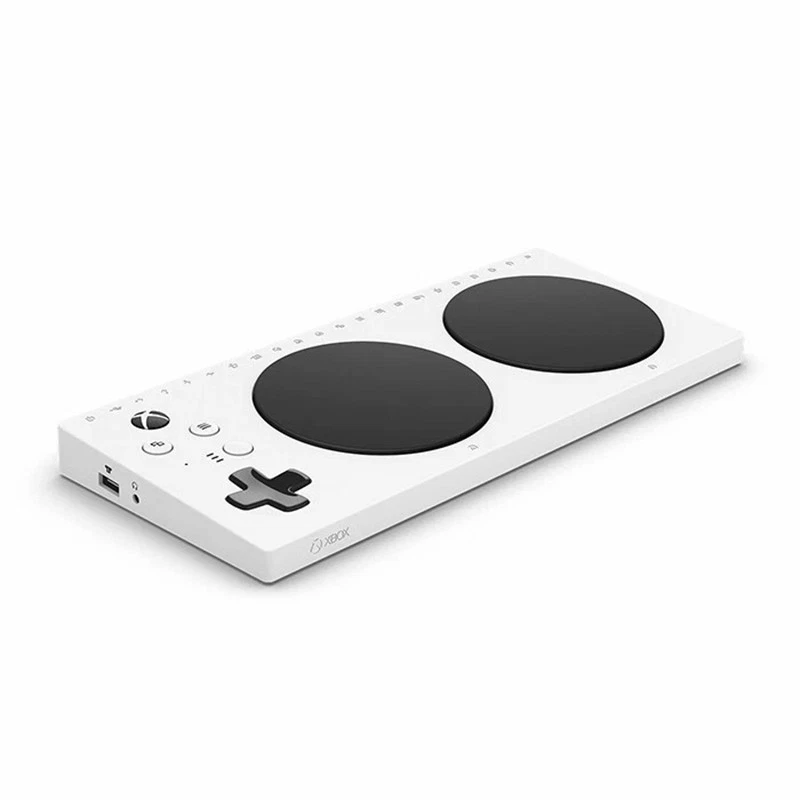
The Xbox Adaptive Controller is specifically designed for players with limited mobility, and it works well with Marvel Rivals. However, there are some current limitations you should be aware of.
The main challenge is that Marvel Rivals treats the Adaptive Controller as a standard controller, which means you might encounter the “device switching” notification if you’re using it in conjunction with other input devices. While this doesn’t break functionality, it can be visually disruptive.
For the best experience with the Adaptive Controller:
- Use the Xbox Accessories app to create custom profiles for Marvel Rivals
- Map your most essential functions to the large buttons
- Use 3.5mm jack inputs for secondary functions
- Consider setting up different profiles for different hero types (tank, damage, support)
Gaming Mice for One-Handed Play
For players who can only use one hand effectively, gaming mice with extensive button layouts can be game-changers. The community has had great success with mice like the Razer Naga, which features 12 side buttons.
For one-handed play, consider this button mapping strategy:
- Mouse movement: Aiming
- Left click: Primary fire
- Right click: Secondary fire or ability
- Side buttons 1-3: Movement (W, A, S, D equivalent through software)
- Side buttons 4-6: Jump, crouch, and melee
- Side buttons 7-12: Character abilities and ultimate
You’ll need software like Joy2Key or AntiMicro-X to translate these mouse buttons into keyboard inputs that Marvel Rivals recognizes.
Alternative Input Solutions
For players with more specific needs, specialized gaming hardware can make a significant difference:
Azeron Controllers: These ergonomic input devices feature joysticks for movement and multiple finger-operated keys, designed to be usable with one hand. They’re particularly effective for players who have use of one hand but want more control options than a standard mouse provides.
Stream Deck or Similar: For players with limited fine motor control, macro pads can automate complex ability combinations or communicate with teammates through preset messages.
Mixed Input Method Setup
One of the most powerful accessibility features in Marvel Rivals is its support for simultaneous mouse and controller input. This allows you to use whichever input method works best for each function.
Setting Up Mixed Input
The most common mixed input setup uses:
- Controller joystick: For movement (left stick)
- Mouse: For aiming and some abilities
- Controller buttons: For abilities that are easier to press than keyboard keys
To set this up effectively:
- Connect both your controller and mouse
- Use the controller for movement, but don’t worry about the aiming sticks
- Handle all aiming through your mouse
- Map abilities to the most accessible buttons on either device
Important note: Currently, Marvel Rivals shows device switching notifications when you alternate between inputs. While the community is advocating for this to be made optional, it doesn’t affect functionality.
Character-Specific Accessibility Recommendations
Most Accessible Heroes
Based on community feedback and my own testing, here are the heroes that tend to work best for players with limited mobility:
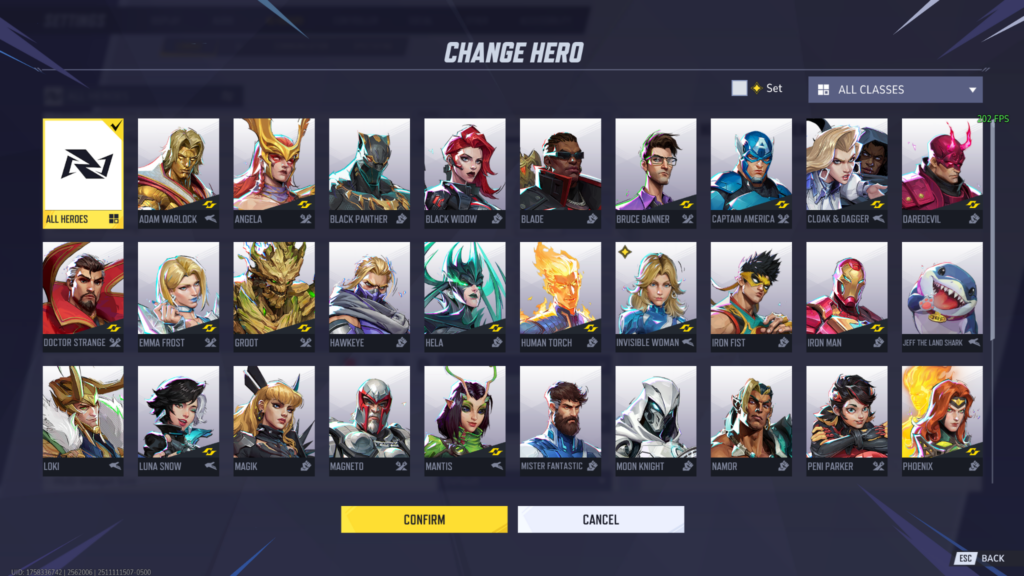
Jeff the Shark: Simple movement, forgiving hitbox, and essential healing role make Jeff excellent for players who need a less mechanically demanding character.youtube
Groot: Tank role with straightforward abilities and good survivability. His wall creation is easy to use and doesn’t require precise timing.
Cloak and Dagger: Support character with auto-aim healing and relatively simple ability rotations.
Heroes Requiring More Setup
Spider-Man/Venom: These characters benefit greatly from accessibility tweaks but need specific settings adjustments. Turn off “Easy Swing” to get better control over web placement, and consider enabling “Hold to Wall Crawl” if sustained button pressing is difficult.youtube+1
Iron Man: Flight characters require hold-to-toggle setup for extended flight, but once configured, they can be very accessible due to their ranged combat style.
Troubleshooting Common Issues
Input Lag or Detection Problems
If you’re experiencing input delays or detection issues:
- Make sure only necessary input devices are connected
- Disable Steam Input if it’s interfering with your setup
- Try connecting your controller via USB rather than wireless for more stable input
Device Switching Notifications
The constant device switching notifications are a known accessibility issue. While we wait for an official fix:
- Try to minimize switching between input types mid-match
- Set up your controls to primarily use one input method with the other as backup
- Contact Marvel Rivals support to add your voice to requests for this feature to be made optional
Button Mapping Not Saving
Occasionally, custom button mappings may not save properly:
- Always use “Apply to All Heroes” after making changes
- Test your settings in the training range before joining matches
- Keep screenshots of your settings in case you need to recreate them
Building Your Personal Setup
Step-by-Step Configuration Process
- Start with movement: Ensure you have comfortable, reliable movement controls
- Set up primary actions: Map shooting, jumping, and your most-used ability
- Configure hold-to-toggle settings: Go through each character you want to play and set up comfort toggles
- Test in training range: Spend time with each hero to ensure the controls feel natural
- Refine and adjust: Don’t be afraid to iterate on your setup as you play more
Creating Multiple Profiles
If you play different types of heroes, consider creating different control schemes:
- Tank profile: Focus on easy access to defensive abilities
- Damage profile: Prioritize quick access to offensive abilities
- Support profile: Emphasize positioning and healing abilities
The Bigger Picture: Community and Advocacy
The accessibility features in Marvel Rivals exist largely because players have advocated for them. If you encounter barriers that aren’t addressed by current options, consider reaching out to the development team through their Discord or official channels. The community has already successfully pushed for many of these features, and continued feedback helps ensure accessibility remains a priority.
What’s particularly encouraging is seeing the community response when players share their accessibility setups. The Marvel Rivals community has generally been supportive and helpful when players explain their needs and share solutions that work for different types of limited mobility.
Your gaming experience matters just as much as anyone else’s, and these tools exist to help you enjoy Marvel Rivals on your own terms. Don’t hesitate to experiment with different setups until you find what works best for you. The perfect accessibility setup is the one that lets you focus on having fun rather than fighting your controls.
Have you found settings or hardware solutions that work well for limited mobility gaming? I’d love to hear about your experiences in the comments. The more we share these solutions, the more we can help other players find ways to enjoy gaming regardless of physical limitations.